



Fixing VirtualBox Error: VERR_VM_DRIVER_VERSION_MISMATCH (-1912)
Fixing VirtualBox Error: VERR_VM_DRIVER_VERSION_MISMATCH (rc=-1912) on Windows
VirtualBox is one of the most widely used virtualization tools for developers, DBAs, and learners. However, Windows users often face a frustrating startup issue:
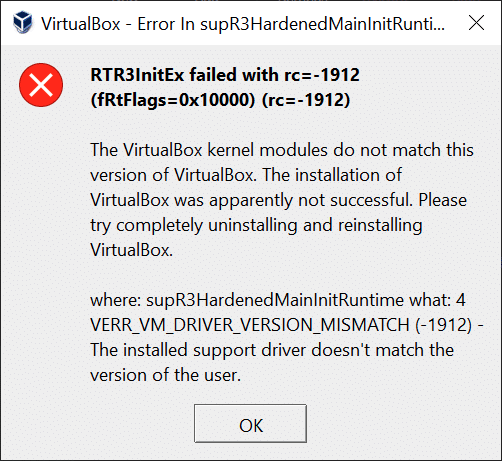
RTR3InitEx failed with rc=-1912
VERR_VM_DRIVER_VERSION_MISMATCH (-1912)
This blog explains what this error means, why it occurs, and how to permanently fix it, step by step.
What Is the VirtualBox rc=-1912 Error?
This error indicates a version mismatch between VirtualBox application files and its kernel drivers installed on Windows.
In simple words:
- VirtualBox UI belongs to one version
- VirtualBox drivers loaded by Windows belong to another version
Because of this mismatch, VirtualBox fails to start any virtual machine.
Technical Meaning of the Error
RTR3InitEx failed with rc=-1912
VERR_VM_DRIVER_VERSION_MISMATCH
RTR3InitEx→ Runtime initialization of VirtualBoxrc=-1912→ Driver incompatibility errorVERR_VM_DRIVER_VERSION_MISMATCH→ Kernel driver and user-space binary versions differ
VirtualBox relies heavily on kernel-level drivers, and Windows blocks execution if versions don’t match.
Common Reasons for This Error
1️⃣ Incomplete VirtualBox Installation
- Installation interrupted
- Driver permission denied during install
2️⃣ VirtualBox Updated Without Reboot
- Old drivers still loaded in memory
3️⃣ Windows Update Conflict
- Windows updates overwrite or disable drivers
4️⃣ Hyper-V Enabled on Windows
- Hyper-V conflicts with VirtualBox kernel drivers
5️⃣ Multiple VirtualBox Versions Installed
- Leftover files from older installations
Permanent Solution (Step-by-Step)
STEP 1: Completely Uninstall VirtualBox
- Press Windows + R
- Type
appwiz.cpl - Uninstall Oracle VM VirtualBox
- Restart your system
⚠️ Restart is mandatory to unload old drivers
STEP 2: Remove Leftover VirtualBox Files (Very Important)
After reboot, manually delete remaining folders:
Delete Program Files:
C:\Program Files\Oracle\VirtualBox
C:\Program Files (x86)\Oracle\VirtualBox
Delete User Configuration:
%USERPROFILE%\.VirtualBox
These folders often contain old driver references.
STEP 3: Disable Hyper-V and Related Features
VirtualBox cannot work properly with Hyper-V enabled.
- Press Windows + R
- Type
optionalfeatures - Uncheck the following:
- Hyper-V
- Virtual Machine Platform
- Windows Hypervisor Platform
- Windows Sandbox
- Click OK
- Restart system
STEP 4: Verify Hardware Virtualization (BIOS)
- Open Task Manager
- Go to Performance → CPU
- Check:
Virtualization: Enabled
If disabled:
- Enter BIOS (F2 / F10 / DEL)
- Enable Intel VT-x or AMD-V
STEP 5: Install VirtualBox Correctly
- Download latest stable VirtualBox from Oracle website
- Right-click installer → Run as Administrator
- Allow all driver installation prompts
- Complete installation
- Restart system
Verify the Fix
- Open VirtualBox
- Start any VM
- Error rc=-1912 should be resolved
If VM starts normally, drivers are correctly loaded 🎉
Advanced Troubleshooting (If Still Fails)
▶ Check Loaded Drivers
Open Command Prompt (Admin):
sc query vboxdrv
Expected state:
STATE: RUNNING
▶ Repair Installation
Re-run the VirtualBox installer and choose Repair option.
Conclusion
The rc=-1912 VirtualBox error is not a VM issue but a driver compatibility problem. A clean uninstall, disabling Hyper-V, and proper reinstallation resolve it permanently in most cases.
This issue is especially common among:
- Oracle DBAs
- Linux learners
- VirtualBox users on Windows 10/11
Fix it once, and VirtualBox will run smoothly again 🚀
If you are learning VirtualBox for Oracle, Linux, or cloud labs, ensure your system virtualization and drivers are always clean and updated.
Happy Virtualizing! 😊
Want to see how we teach?
Head over to our YouTube channel for insights, tutorials, and tech breakdowns: www.youtube.com/@learnomate
To know more about our courses, offerings, and team:
Visit our official website: www.learnomate.org
Interested in mastering Oracle Database Administration?
Check out our comprehensive Oracle DBA Training program here:https://learnomate.org/oracle-dba-training/
Want to explore more tech topics?
Check out our detailed blog posts here: https://learnomate.org/blogs/
And hey, I’d love to stay connected with you personally!
 Let’s connect on LinkedIn: Ankush Thavali
Happy learning!
Ankush😎